Knowledge Base Best Practices: The Ultimate 12-Point Checklist
Get a clear overview of what makes a knowledge base effective and easy to use. Learn the proven methods that lead to happier users.
Written by Kateryna Havrylenko

“What’s this new feature?”, “How does it work?”, “Help me to set it up!”: this is what your support team hears almost every day. Customers can’t find answers as there’s no clear guide – no truly functional knowledge base.
Most companies build their knowledge base in a rush: toss in a couple of tutorials, hit publish, and wait for the magic. Surprise, but magic doesn’t happen. Adding articles randomly and hoping for the best isn’t enough. You need to follow some knowledge base best practices that make it useful and effective for your business. So I’m laying all the cards on the table to show you how to upgrade your knowledge base.
What is a knowledge base?
Let’s start with the essentials – knowledge base definition. A knowledge base serves as an online hub of helpful articles, guides, and answers to the FAQs your customers ask all the time. It collects all the must-know product or service info in one place. Rather than reaching out to support and waiting for the answer, customers can search for their questions and get the solution straight away.
So, an effective knowledge base is a huge time saver for both your customers and your team.
Key benefits of a knowledge base
A knowledge base does way more for your business than just answers to customer questions. When you decide to create your own knowledge base, you invest in a tool that cuts down the costs, smooths out the internal processes, and helps your team work smarter, not harder. Let’s take a look at the real benefits of a high-quality knowledge base.
Valuable product and customer insights. Any well-built knowledge base includes a search bar that helps users quickly find the information they need. Analyzing what customers search for in your knowledge base reveals real user intent. You can identify recurring problems, misunderstood features, and gaps in your content, helping you prioritize product improvements and documentation updates. These insights will help you make the right decisions about product development.
More organic traffic. Knowledge base articles are indexed in Google and can attract new users. Well-optimized self-service content can boost organic traffic without spending a cent on ads.
Faster product onboarding. New users who quickly find answers stay engaged longer and are less likely to abandon the product in the first weeks.
Support available 24/7. Your knowledge base works without days off and time limits. Users can get help anytime, which is especially important for global teams or startups with limited resources.
Stronger brand reputation. Companies with a solid knowledge base appear more professional and customer-focused. This builds trust, improves customer feedback, and encourages recommendations.
Foundation for AI support. An effective knowledge management creates a single, reliable source of truth for your product. If you choose to automate support in the future, this makes it much easier to train AI agents that answer customer FAQs based on your own documentation.
12 knowledge base best practices to follow
Okay, you already know that the knowledge base is great. You’ve probably even looked through a little knowledge base software comparisons and picked a platform. But why are customers still pinging support with the same question? Because there’s a huge difference between “we have a knowledge base” and “we have a knowledge base people actually use.” If you want the second one (and trust me, you do), these 12 practices are your checklist. No need to apply them all at once, but each one matters.
1. Start with customer search behavior research
Before writing guides, figure out what your customers are actually searching for. Look through recent support tickets as they’re full of real questions and recurring issues. Also, check what competitors cover in their own knowledge bases.
Use keyword research tools to see how customers phrase their searches and which words they naturally use when looking for answers. Pay attention to wording, synonyms, and informal expressions (users rarely phrase things the way your team does). For example, instead of searching for “email deliverability settings,” users may type “emails not sending” or “why my emails go to spam.”
2. Use simple, conversational language
You don’t write for engineers – you write for everyday users who just want a quick fix. Avoid jargon, unexplained abbreviations, and corporate talk. If a technical term is necessary, explain it to the customers the first time you mention it. Remember that your audience has mixed levels of experience. Some are new, others know the product better.
3. Add useful visuals
We process visuals much faster than plain text. A screenshot with arrows and labels can explain in seconds what might take several paragraphs. Add screenshots for every major step.
For more complex workflows, use short videos (2-3 mins). Anything longer rarely gets finished. GIFs also work well for demonstrating quick steps without sound.
4. Build intuitive navigation and structure
Customers shouldn’t have to think about where to click to find the info they need. Create 5-7 main categories – that’s the sweet spot for easy scanning. Give each category straightforward names (skip the clever ones). Use clear subcategories, but don’t overdo it.
Choose a reliable knowledge base software that supports breadcrumbs, so users can always see where they are and easily navigate back. And at the end of each article, add a “Related articles” or “Next steps” block to guide them naturally.
5. Add a powerful search bar
Search is the first thing users reach for, so make it big, visible, and at the top. Add autocomplete that suggests articles as they type – it saves time and helps form better queries.
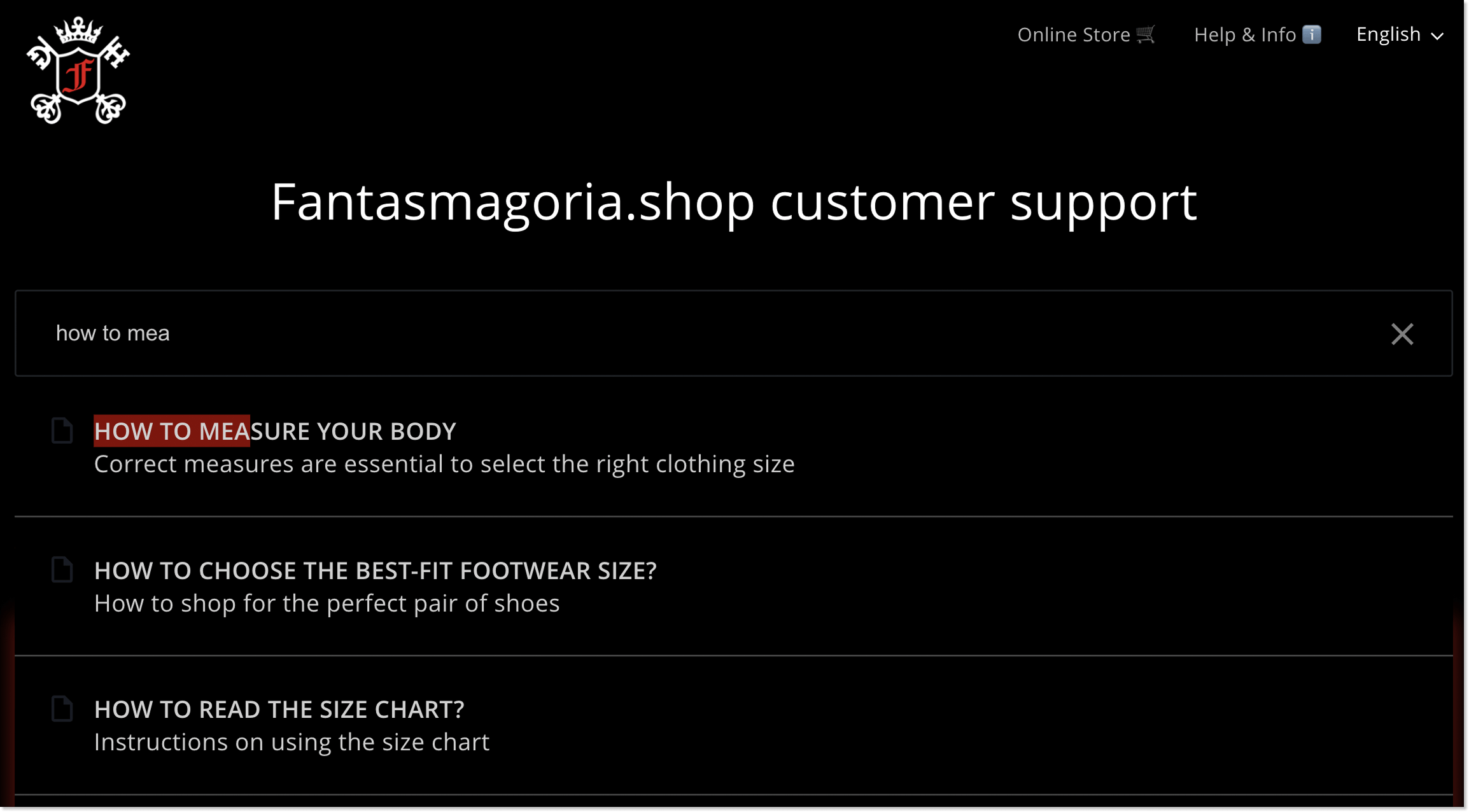
Tracking failed searches is also an important function that many businesses ignore. If users are looking for something that isn’t in your knowledge base, you need to know about it. These queries show you what content you need to create first. A high percentage of failed searches on a particular topic is a direct indication of a content gap.
6. Make every article scannable
Let’s be honest – people don’t read every single word; they scan the page looking for the information they need. So here’s the advice: write in short paragraphs of 2–3 sentences. Large text blocks feel heavy and push users away. Use bullet points and numbered lists for steps or itemized information (lists are much easier to scan).
Add a summary or key takeaways at the top of longer articles. This helps clients quickly decide whether the article is what they’re looking for before scrolling through the whole page. And use subheadings (H2, H3) generously – they break the content into logical sections and help readers find the right part instantly.
Well-structured articles also benefit automated support. Customer-facing knowledge base articles often become the foundation for AI agents. Clear structure, short paragraphs, and descriptive headings make it easier for AI systems to correctly process, reuse, and learn from your content.
7. Keep your content fresh and accurate
Old or incorrect content in a knowledge base is a recipe for confusion; sometimes it’s even worse than having no information at all. You should set up a quarterly content review cycle. And whenever your product gets an update, refresh the related articles right away.
Delete outdated links as soon as you notice them. If an article becomes completely obsolete, don’t just remove it but redirect users to the updated version or the closest alternative. This saves anyone who still has the old link bookmarked.
8. Optimise articles for search engines
As I mentioned earlier, a knowledge base can be a serious traffic driver if you optimize it correctly. Use descriptive, rich keyword titles that still read naturally. Organize your content with proper heading hierarchy (H1 > H2 > H3) so search engines can understand how your article is structured.
Keep your URLs clean and simple. Instead of /article-12345 use something like /how-to-create-account. Clean URLs look better, are easier to remember, and help with SEO.
9. Use customers’ feedback to improve service
Add a comfortable feedback option to every guide: “Was this article helpful? Yes/No” field, star rating, etc. When someone hits “No,” let them leave a comment about what was missing or unclear. Go through low-rated articles on a regular basis. Low scores often mean the content is confusing, outdated, or simply not what readers expected.
Also watch for bounce behavior (when users open an article and leave almost immediately). You can track this using tools like Google Analytics to see which articles fail to meet expectations. That usually means the title promised something the article didn’t deliver.
10. Ensure mobile responsiveness
This is the foundation, the base layer. More than 60% of all web traffic comes from mobile devices. If your knowledge base is clunky on a phone, you’re losing more than half your audience.
Test it across different screen sizes (phones, tablets, multiple browsers). Fonts should be readable without zooming. Buttons and links need to be finger-friendly, so people don’t tap the wrong thing. Compress images and optimize the page (so that it loads in 2–3 seconds). Mobile users are especially impatient – every extra second of loading time increases the likelihood that they will close the page.
11. Integrate knowledge base across support channels
If you’ve built a knowledge base, that’s awesome. But if your customers can’t easily access it, then it’s only doing half of the job. To really help people, it needs to be present everywhere they look for answers.
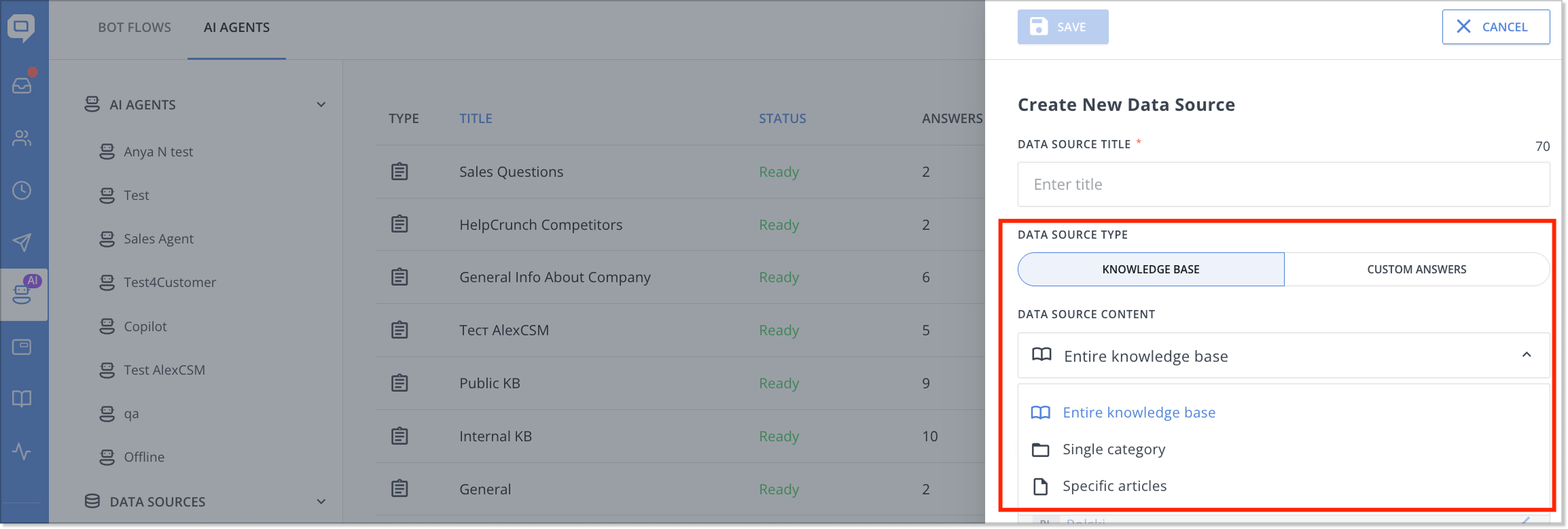
In chat, it should sit right beside the conversation for quick article previews. Modern AI chatbots also depend on knowledge base content. When someone asks a question, the bot pulls the answer from your articles. At HelpCrunch, we use this approach, and the accuracy of the bot depends on how good your content is. And if an article doesn’t solve the issue, a direct path to support should be available.
12. Track article performance
Without analytics, you’re pretty much flying blind. Check which articles get the most views, which ones people close right away, and which receive the top rating. These are real signals from your audience about what’s working and what needs improvement.
Compare your stats before and after you updated an article. If performance improves, that’s proof that the update was effective. Apply those insights to similar articles.
How to create a knowledge management hub with HelpCrunch tools
Theory time is over, now time for practice. You can keep reading about the best knowledge base examples and imagining yours… or you can just sit down and build it. With HelpCrunch, it’s definitely not rocket science. So let’s create our knowledge base.
Set up your HelpCrunch workspace
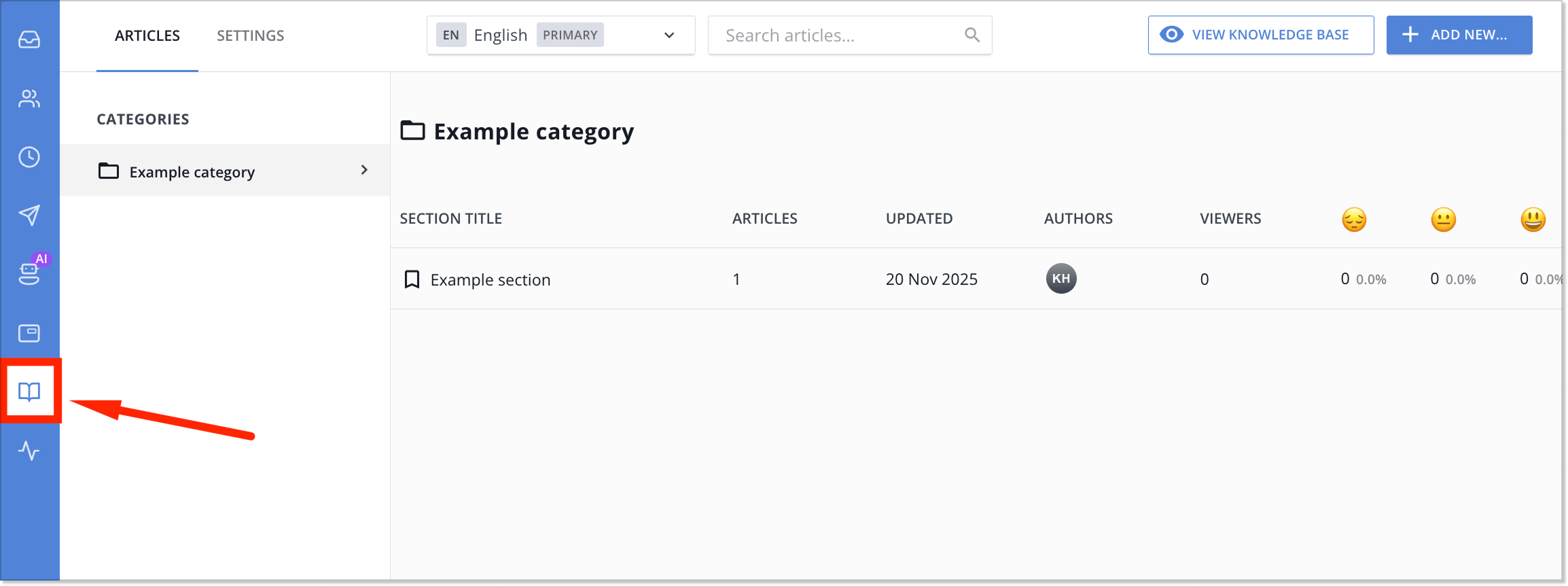
Log in to your HelpCrunch account and head to the Knowledge Base section in the sidebar. This is where you’ll manage all your content.
Customize the knowledge base design
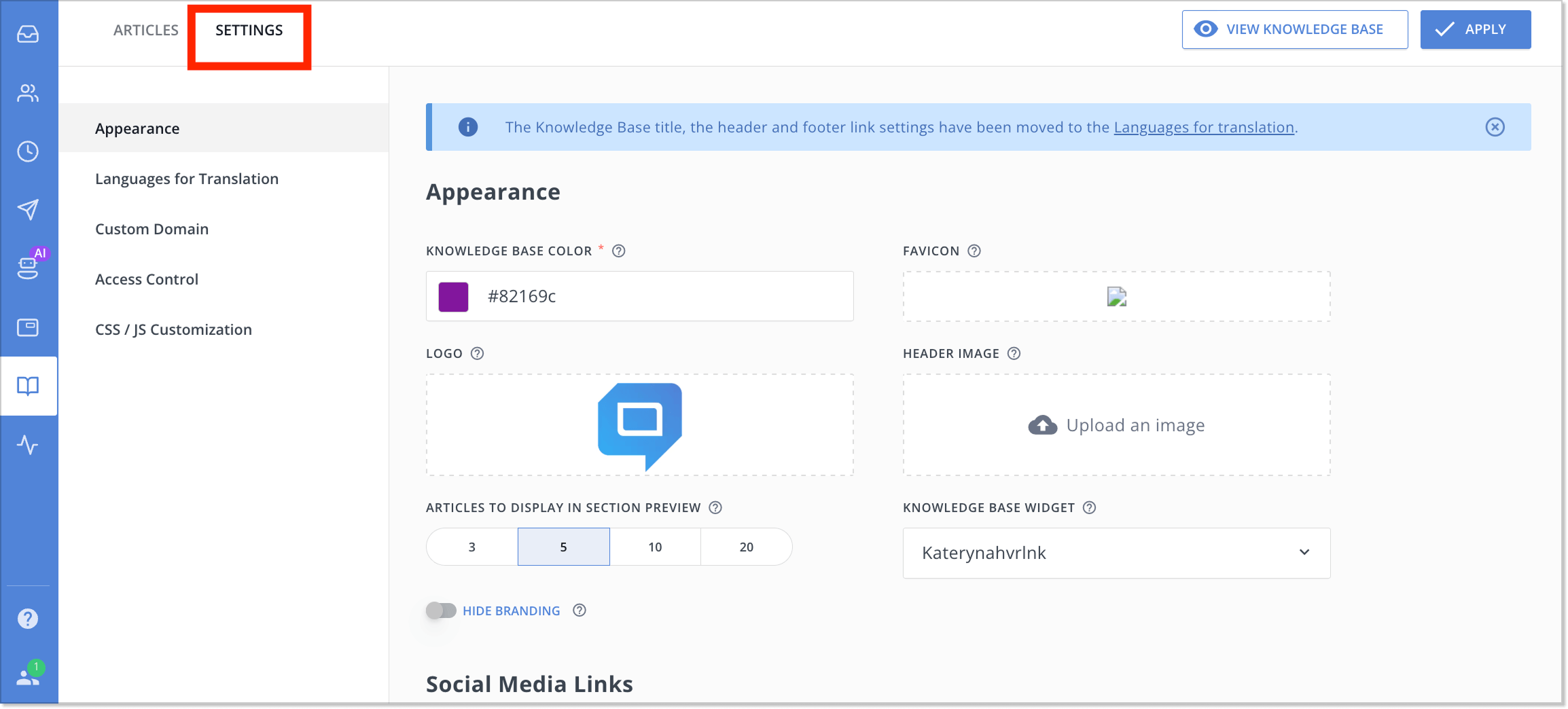
Navigate to the Settings to adapt the design of the knowledge base, like part of your website. Adjust colors, upload your company logo, and choose your fonts. It must feel like a natural part of your website, not like an external tool glued on top.
Create main categories to organize future articles
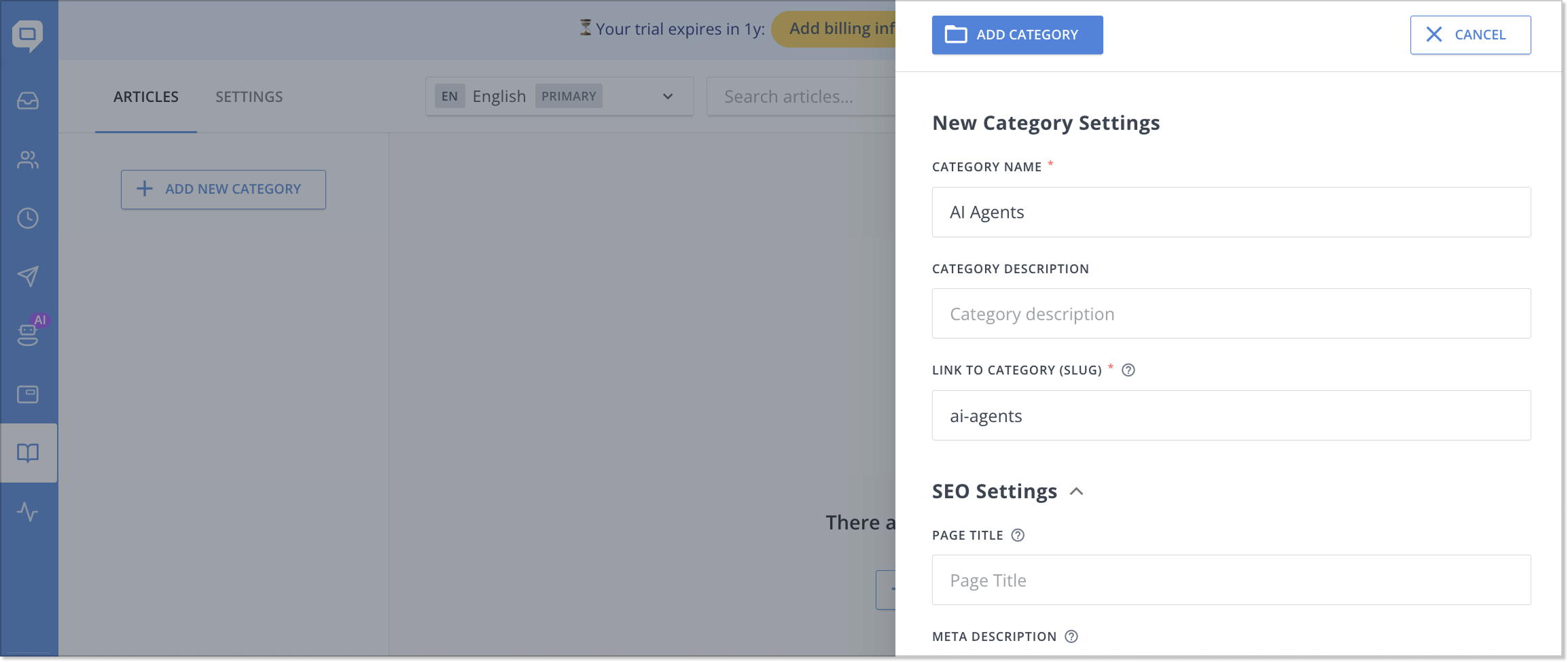
In the Articles section, click Add new category and fill in the needed fields. You can also set up advanced SEO settings for each category.
Create articles using the HelpCrunch editor
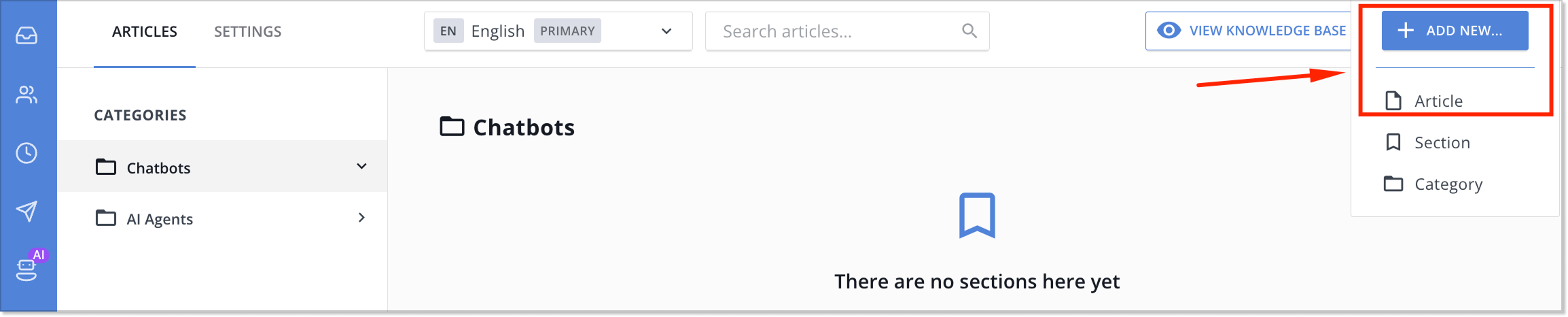
Open a category, hit “Add new” > “Article”. HelpCrunch offers a WYSIWYG editor (What You See Is What You Get), which is super intuitive. Each article is saved as a draft automatically.
Publish and preview the content
Before publishing, click the Preview button to check how the article will look for the users. If everything looks right, change the article status from Draft to Public, and hit Save article.

And that’s it! In just a few minutes, your knowledge base is live and ready to help your customers 24/7. If you’re not sure where to start, check out guides on how to write a knowledge base article. They’ll help you create content that actually solves user problems.
FAQs
How do I choose topics to include in my knowledge base?
Start with the most common support questions, feedback from support tickets, and pain points your users encounter. Organize content around these topics, so users can easily find answers.
What makes a knowledge base article effective?
Effective articles are clear, brief, well-formatted, use simple language, and include visuals (screenshots or videos) when helpful.
Should my knowledge base content be written for customers or support agents?
If your knowledge base is public, write for customers in simple language. If it’s an internal knowledge base, tailor content to agent workflows and technical depth. For hybrid use, distinguish sections clearly.
Put these best practices into action
Now you have all the knowledge base best practices to create self-service support, which actually works. Don’t wait for the perfect moment or look for ideal knowledge base templates, start with the basics. Understand what clients are looking for, organize content logically, add a powerful search bar, and track customer satisfaction. The sooner you start implementing these practices, the earlier you’ll see progress. So what’s next? Choose 2–3 practices and get started today.