
Last time we were busy with phones: new chat search in the Inbox apps and a round of SDK stability fixes. This time, it’s the Knowledge base’s turn.
Nothing groundbreaking here, but if your knowledge base is part of how you support customers, you’ll notice the difference. Long story short: text snippet callouts and accordions in the article editor, and better access control for password-protected knowledge bases. Just several things that make knowledge base content easier to write, read, and keep private. We didn’t forget about the iOS SDK: it got a few fixes as well.
🧱 New formatting tools in the Knowledge base editor
🪗 Accordions: Long articles that don’t look long
Some articles are long for a good reason. The information matters, the thing is that no single reader needs all of it at once. Showing everything by default only makes the page harder to scan.
Now, the Knowledge base editor supports accordions: sections that stay collapsed until the reader clicks the title. The page looks short and scannable, and the details are one click away for whoever actually needs them.
Accordions are handy for:
- FAQ sections
- troubleshooting steps
- optional details and extra context
- long explanations that would otherwise break the flow
- instructions that only apply to some readers
To add one, place your cursor where you want the accordion, hit Enter, and choose Accordion from the context menu. If you have the text already written, select it and click Insert accordion instead.
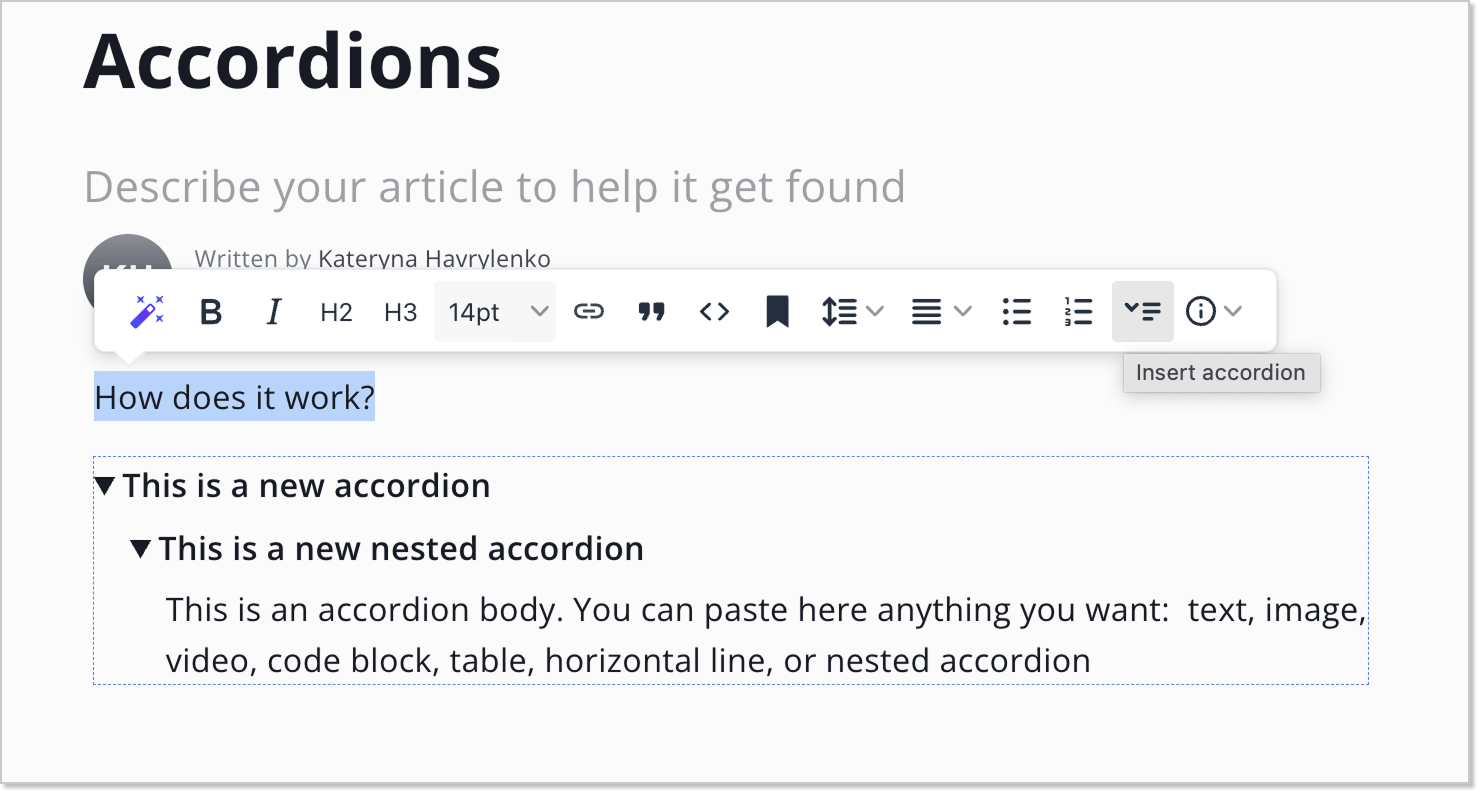
Replace Accordion summary… with the title readers will click, and Accordion body… with the content that opens underneath. The usual editor formatting works inside, including text, image, video, code block, table, horizontal line, or nested accordion.
You can add as many accordions to one article as you need.
For the full walkthrough, learn how to add accordions to your Knowledge base articles.
📋 Text snippet callout: Highlight text without making it look like code
Help articles are full of content that needs to stand apart from the surrounding text: a sample email your team can copy, a prompt for your AI Agent, or a legal disclaimer.
So we added a new callout: Snippet. It works like a code sample, but it isn’t height-limited, and it doesn’t pretend your text is code. Longer blocks stay fully visible, and readers immediately understand “this is the thing you’re meant to copy, quote, or follow.”
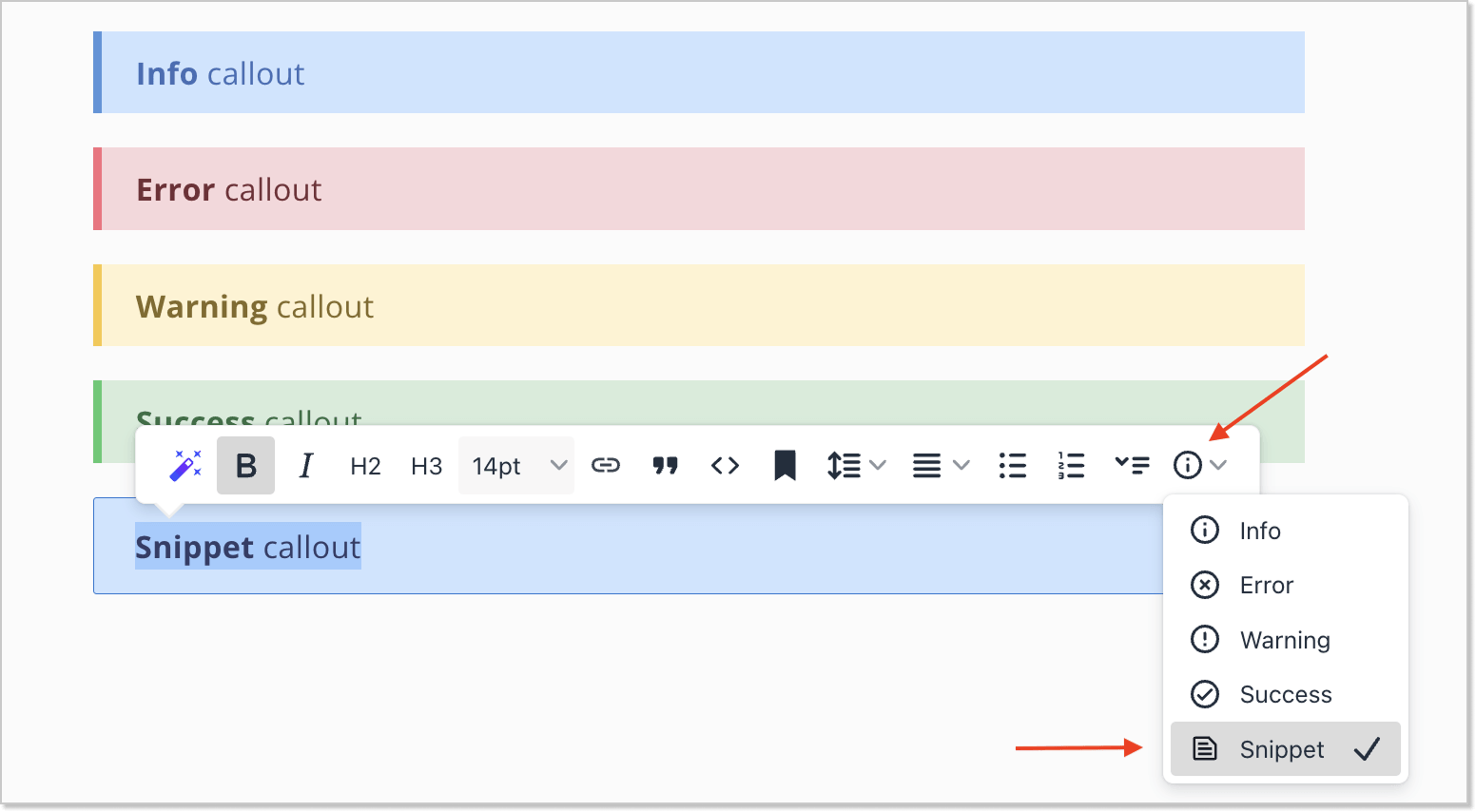
You’ll find Snippet alongside the other callouts in the article editor.
It’s a good fit for:
- AI Agent instructions and prompts
- sample messages and emails
- direct quotes
- glossaries
- disclaimers
- example names and addresses
- checklists and step-by-step plans
- notes and instructions
- log excerpts
🔒 More control over password-protected knowledge bases
If your knowledge base is password-protected, two things used to get in the way: visitors had to enter the password separately on the web and in the widget, and that access stayed active indefinitely.
We took care of both.
⏳ Auto-logout after: Access that expires on your terms
We reworked the structure and the interface of the Access control page and rewrote almost all of its copy, so it’s clearer what each setting does. And there’s a new “Auto-logout after” field there.
Where to find it: Knowledge base → Settings → Access control → Password protection.
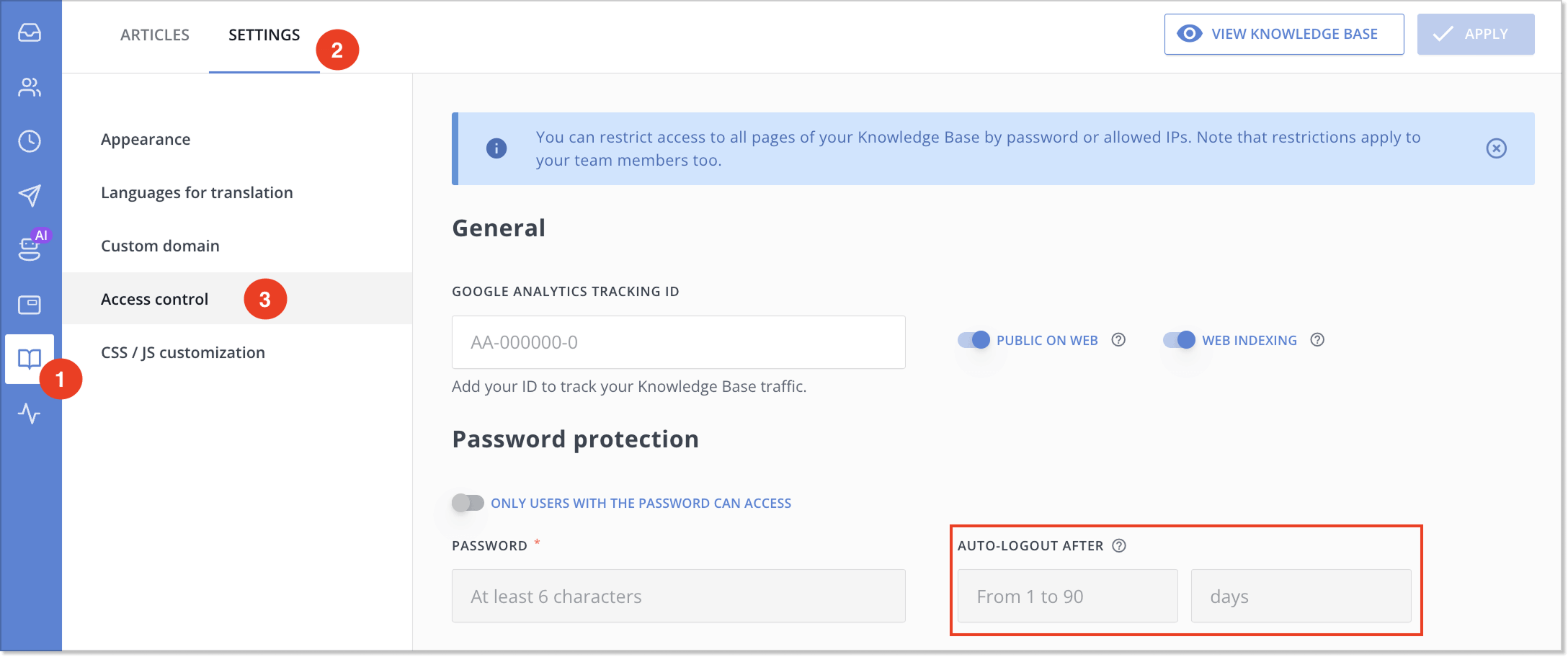
Enter a value from 1 to 90 days, and that’s how long a visitor stays logged in after entering the password.
The countdown starts the moment they log in, and coming back doesn’t reset it. When the period ends, the visitor is logged out and has to enter the password again.
This is useful anywhere access shouldn’t be permanent by default:
- shared and public computers
- temporary workstations
- contractors, freelancers, and seasonal staff
- partner access tied to a specific project
If you prefer things exactly as they were, leave the field empty. The session then has no fixed expiration and lasts as long as the browser allows.
🔄 Sync password for the web knowledge base and the widget
Previously, a visitor could enter the password on a web knowledge base, then open the chat widget and get asked for the password all over again. Same person, same knowledge base, two logins.
The authentication carries over: once you successfully log in to your password-protected web knowledge base, that same knowledge base is available in the widget for that session, without a second password prompt.
This works in one direction only. Logging in through the widget doesn’t unlock the web version, where the password is still required.
For security reasons, we never display a password that was saved earlier. You’ll see the Password has been set before status instead.
Get more details in our guide on Knowledge Base access restriction.
📱 iOS SDK 4.5.5 fixes
A quick one for the developers in the room. iOS SDK 4.5.5 is a maintenance release with under-the-hood fixes for stability and cleaner error handling. iOS 15 is still supported, so nothing to worry about on that front.
Small changes, but they save your team time. If something in the Knowledge base still slows you down, tell us in the chat – that’s where most of these ideas come from.
Read Also
👥 Individual team member display settings per widget
Managing several brands or products? Choose which team members appear in each chat widget and hide offline ones. See what changed and how to set it up.
💌 Meet new assignment rules based on email fields (to/from/subject)
Time to bring order to your email workflow. Now, you can create assignment rules to redirect or tag messages based on the recipient, sender, or subject.
📱 Mobile cleanup: New chat search in apps & SDK stability
Our mobile stack just got a serious cleanup. Enjoy a brand-new chat search in the HelpCrunch Inbox apps, improved message reliability, and a load of SDK stability fixes.
