
While your team is enjoying the order brought by new assignment rules based on email fields, we turned to the first thing your visitors see: the chat widget.
Those managing several brands and teams under one account will appreciate this the most. We keep building on HelpCrunch’s multi-product support capabilities, so each widget now has its own list of team members to display. Additionally, a new toggle hides everyone who’s offline.
💬 Display different team members in each widget
Until now, whether a team member appeared in your widget depended on a single “Show in chat” toggle in their profile, which applied across all your widgets.
That’s fine if you operate a single brand. But with HelpCrunch, you can set up a separate widget for each of your brands, regions, websites, or web apps, and they all had to show the same team members.
Now, we’ve replaced this toggle with individual display settings for each widget. For example, your main website can feature your sales team, while your web app shows the support agents who work with that product. And if you run several brands, each widget can present its own support or sales reps.
To set it up, go to Settings → Channels → Website widgets → [your widget] → Customization and open the new Team members section.
There, turn on the toggle in the “Show” column next to each team member you want to appear in this widget.
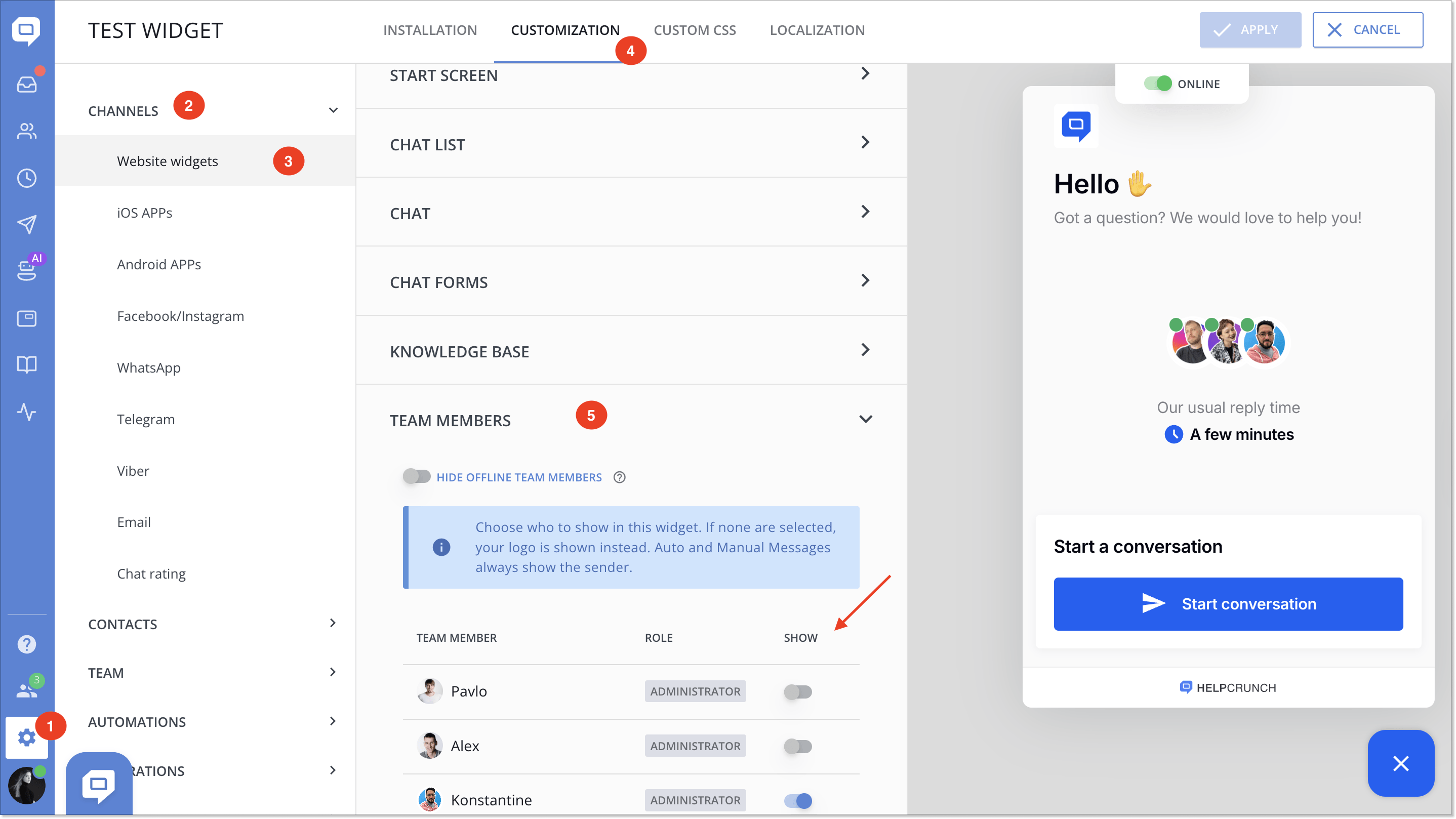
If no one is selected, the widget shows your company logo instead. The only exception is Auto and Manual Messages: they always show the sender.
Click “Apply” to save the changes, then repeat for your other widgets.
🌙 Hide offline team members in the widget
In the same section, each widget also gets a new “Hide offline team members” toggle. When it’s on, the widget shows only the selected team members who are currently online. Offline agents aren’t hidden in Auto and Manual Messages, though.
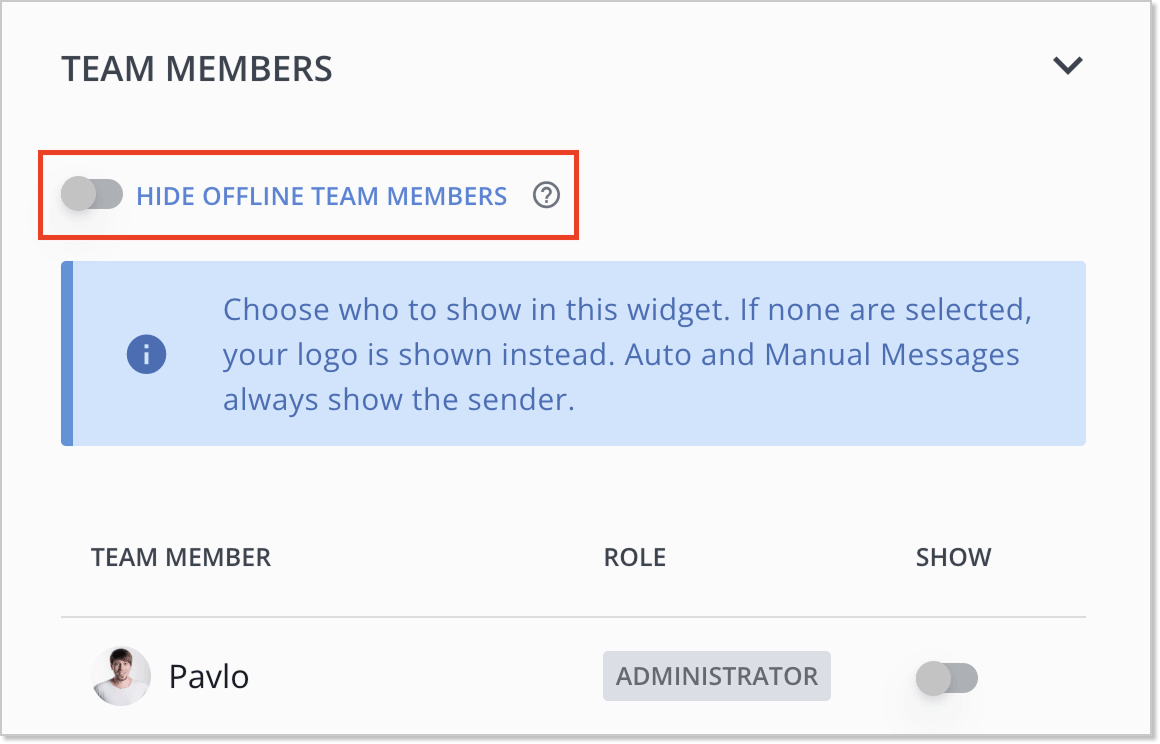
You can check all the details in our guide: Display different team members in each chat widget.
Head to your widget settings and choose who greets your customers in each one.
Read Also
💌 Meet new assignment rules based on email fields (to/from/subject)
Time to bring order to your email workflow. Now, you can create assignment rules to redirect or tag messages based on the recipient, sender, or subject.
📖 Accordions, snippet callouts, and auto-logout for Knowledge base
Two new formatting tools in the Knowledge base editor, plus auto-logout for password-protected knowledge bases, smoother widget access, and minor fixes for iOS SDK.
📱 Mobile cleanup: New chat search in apps & SDK stability
Our mobile stack just got a serious cleanup. Enjoy a brand-new chat search in the HelpCrunch Inbox apps, improved message reliability, and a load of SDK stability fixes.
