
We’ve crossed 10 seas and closed 100 tasks since the last news about the ability to trigger popups via the JavaScript API. But we haven’t changed – we’re still stubbornly committed to improving your HelpCrunch experience. And today, we are announcing a new setting for the first chat assignment by round-robin, a new popup display rule, and more. Check it out!
🧭 New setting for first chat assignment by round-robin
To make the new chat distribution process more predictable, we’ve added a new department-level setting. Now you can control whether the first chat assignment in the round-robin flow goes only to online agents or to any agent.
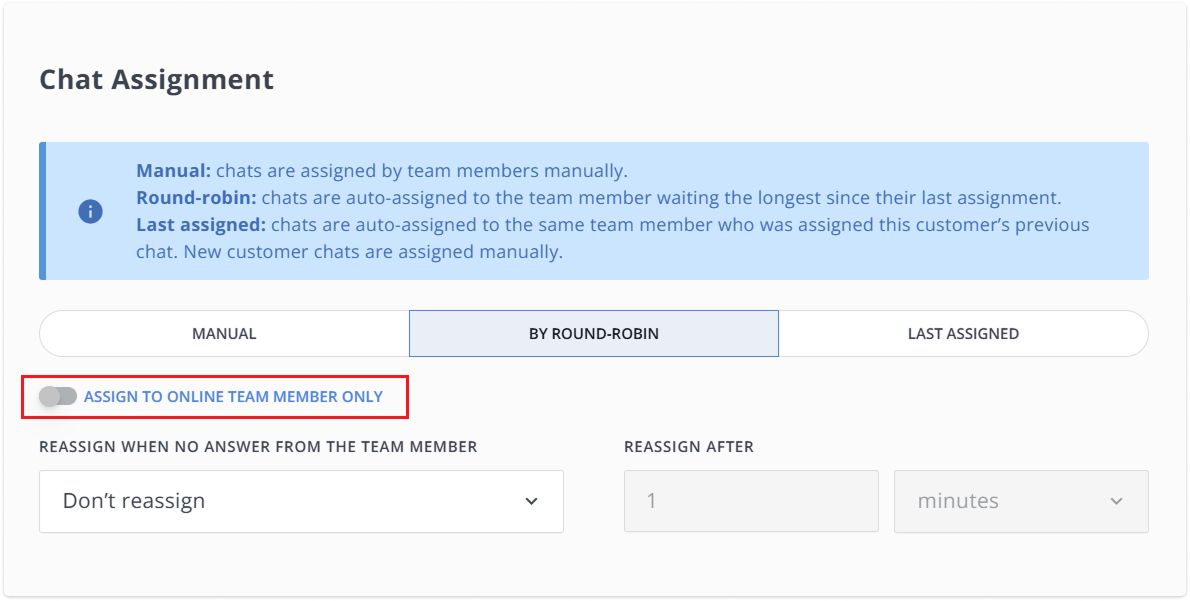
In Settings → Team → Departments, you’ll find a new toggle “Assign to online team member only”. If you use it, the first chat assignment will always go to an online agent.
- ON → The first assignment always goes to an online agent.
- OFF → The first assignment can go to any agent (online or offline).
- Default for all organizations: OFF.
This helps you avoid “dead” first assignments, reduce time-to-first-reply, and keep routing aligned with how your team actually works (24/7 shifts vs. business hours, mixed availability, etc.). Read more in this article.
🆕 Smarter popup targeting: “Time since the last sent popup”
We’ve added a new display rule for Popups: Time since the last sent popup. This works the same way as the “Time since the last proactive invitation” rule in proactive chat Auto Messages – but now it’s available for Popups.
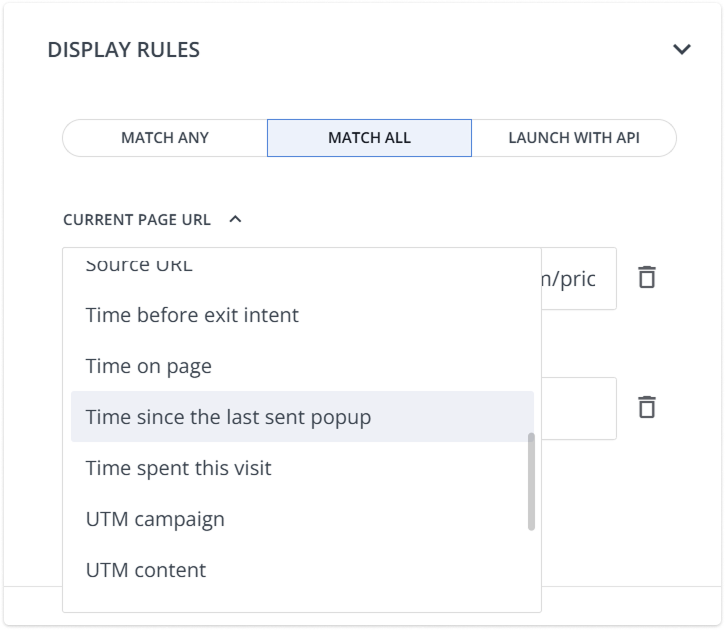
You can set a time window so a popup is shown only if enough time has passed since the last popup was sent to the same visitor. This helps you:
- avoid spamming users with repeated popups
- reduce irritation and drop-offs
- keep campaigns effective by showing popups at the right moment, not on every visit.
✍️ Knowledge Base: Paragraph font size & line height controls
Knowledge Base now has new formatting options: adjust font size and line height for paragraph text. This gives you more control over the editor.
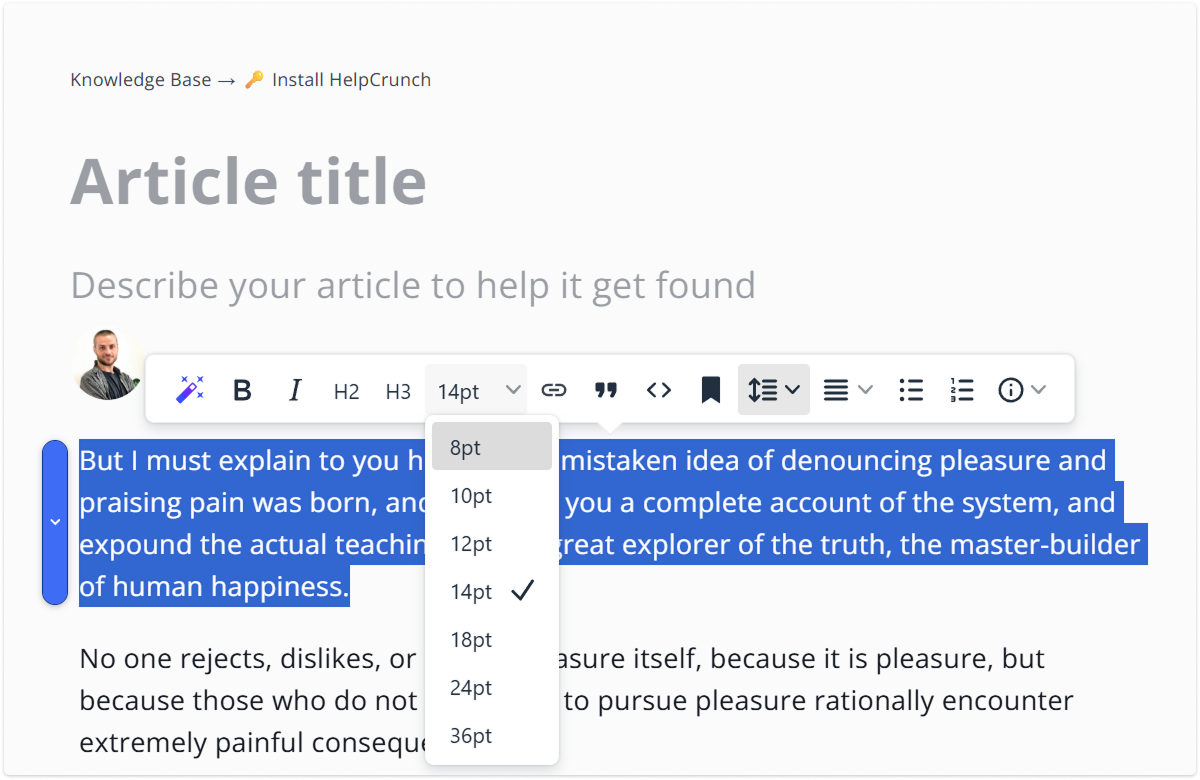
Font size and Line height controls are in the editor toolbar. If your text is formatted as H2 or H3, both controls are disabled (to keep headings consistent and avoid messy layouts).
Now you can highlight important points without turning every section into a heading, which helps maintain consistent formatting across your Help Center. It makes long articles easier to read, especially on mobile.
We’re focused on making HelpCrunch better and your day-to-day smoother with every release. Go try these latest changes and tell us how you like them!
Read Also
🧠 AI Agents supercharged: Multi-source answers and enhanced accuracy
Our AI Agents just got a major upgrade: next-gen models, multi-source answer synthesis, and smarter conversation flows. Discover all the improvements.
🍁 Launch popups via JavaScript API, clickable phone number and more
Launch popups via JavaScript API, use hotkeys to mark chats read/unread, click to call users from their profiles, and smarter Assignment Rules.
🤖 Introducing HelpCrunch AI Agents: Multichannel and fully under your control
Meet HelpCrunch AI Agents! Handle up to 80% of customer requests automatically and scale your support while reducing costs.
