
The last time you were here, we presented you with news about the Open and click tracking settings in emails and eight new languages in the AI Editor. It was fun, but long gone. Today, we are bringing you Spring 2025 updates: new permissions for Inbox actions, UX improvements across the service, and a brush-up for the widget.
🛠️ New Inbox & Saved Responses permissions
We’ve expanded Inbox permissions to give teams more granular control over who can edit or delete messages and create inboxes. This adds clarity, security, and flexibility to how your team works inside the shared inbox.
You can find it in Settings → Team → Roles & Permissions → Inbox.
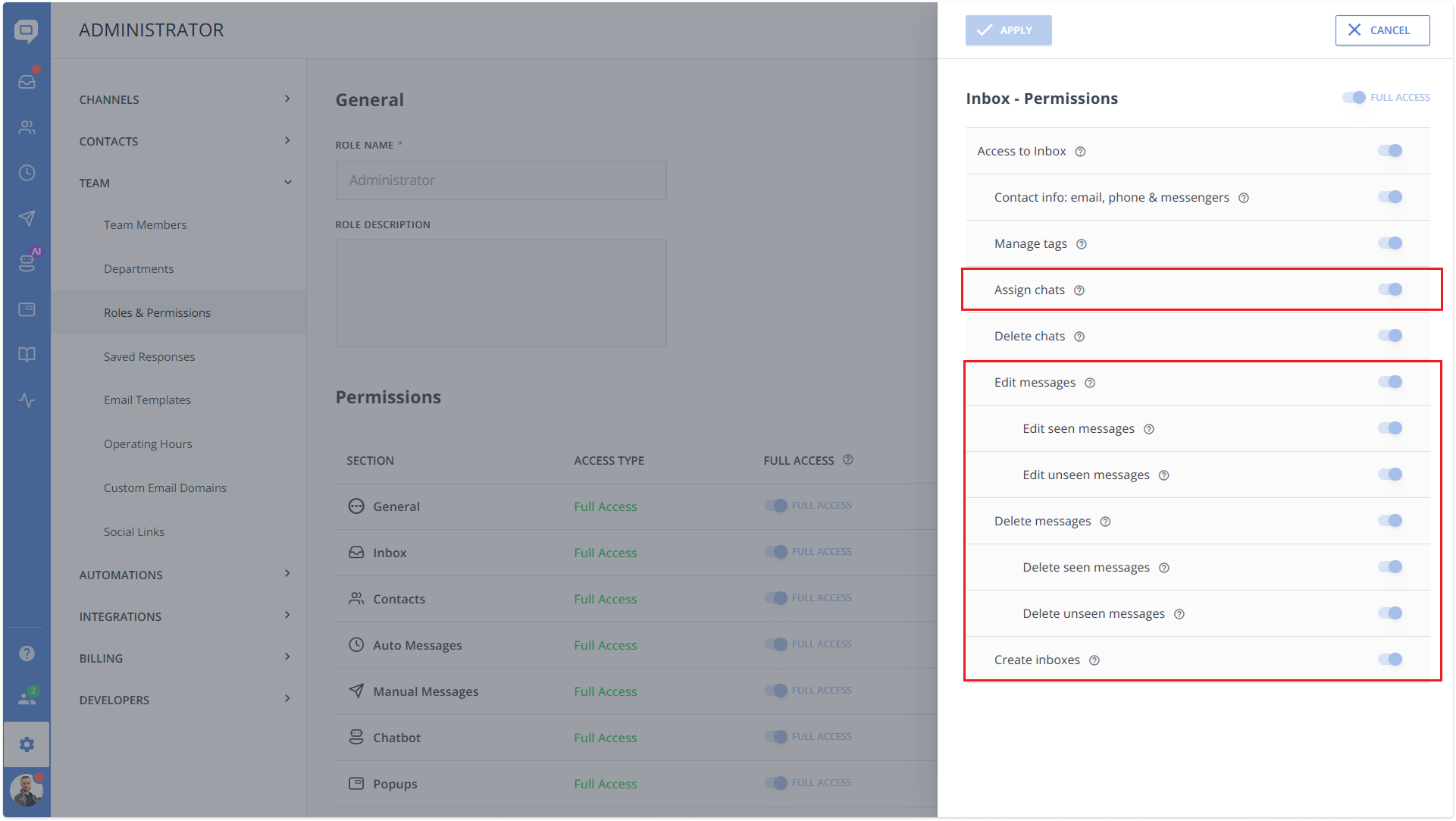
✏️ Edit message permissions. You can now manage editing rights at a much more detailed level.
- If turned OFF, the “Edit message” option in Message actions disappears.
- If OFF, users also can’t edit the last message using the ↑ (arrow up) keyboard shortcut.
The same goes for Seen and Unseen messages (sub-permissions).
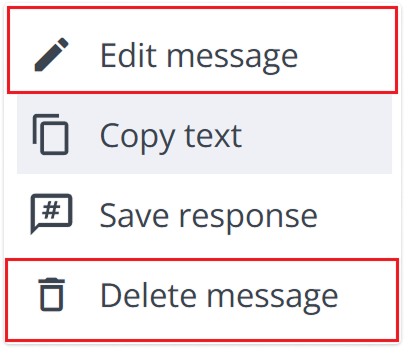
🗑️ Delete message permissions. Similar to editing, delete permissions now work on a more granular level.
- If OFF → the ”Delete message” action disappears from Message actions.
The same goes for Seen and Unseen messages (sub-permissions).
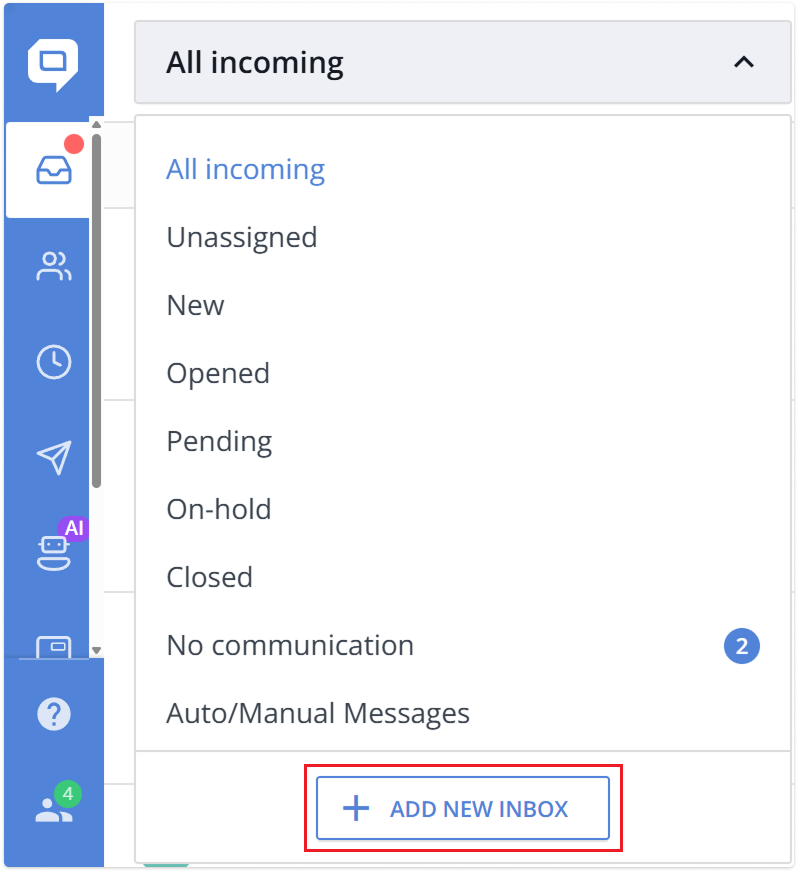
📬 Create inboxes permission. This new permission controls the ability to create custom inboxes.
- If OFF → the block with the “Add new inbox” button is hidden.
📌 Manual chat assignment permission. Permission that manages whether an agent can manually assign chats in the Inbox.
- If OFF → the Assignee drop is not active (disabled), as for Closed chats.
📝 Saved Responses management. A dedicated permission in Settings → Saved Responses that lets you control who can access and manage this section.
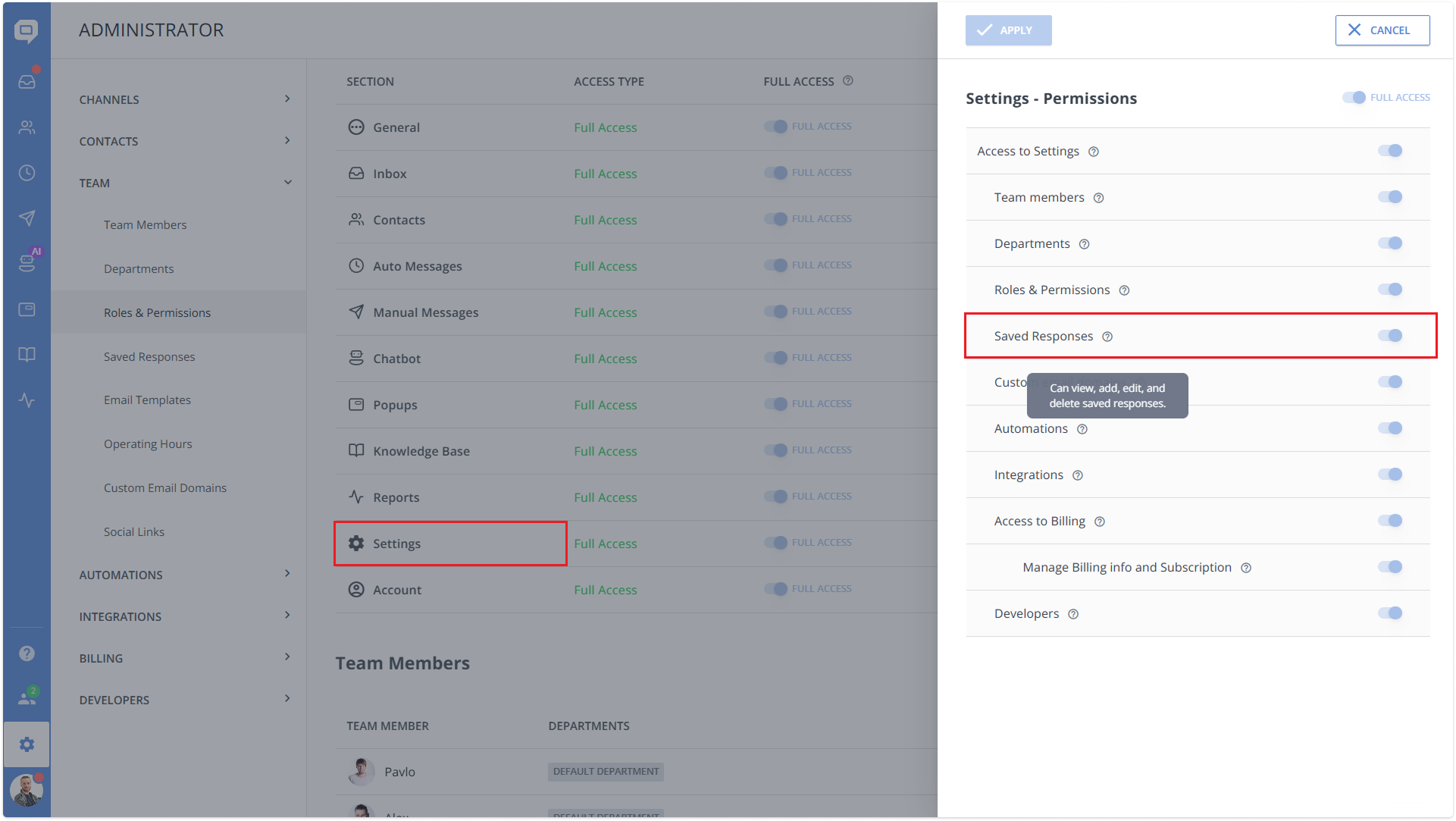
- When the permission is OFF → the user cannot access the Saved Responses page at all.
- When the permission is ON → the user gets full read & write access, meaning they can view and edit saved responses.
🔧 Default permission states by role. To keep everything consistent and secure, these new permissions have the following defaults across all system roles:
- Administrator: All ON
- Supervisor: All ON
- Agent: All ON
- Support: All OFF (except Chat Assignment permission, it’s ON by default)
- Existing custom roles: All ON, as long as parent permissions (Full access / Access to Inbox) are also ON.
- New custom roles (created after this release): All permissions OFF by default.
👥 Team Members and Departments update
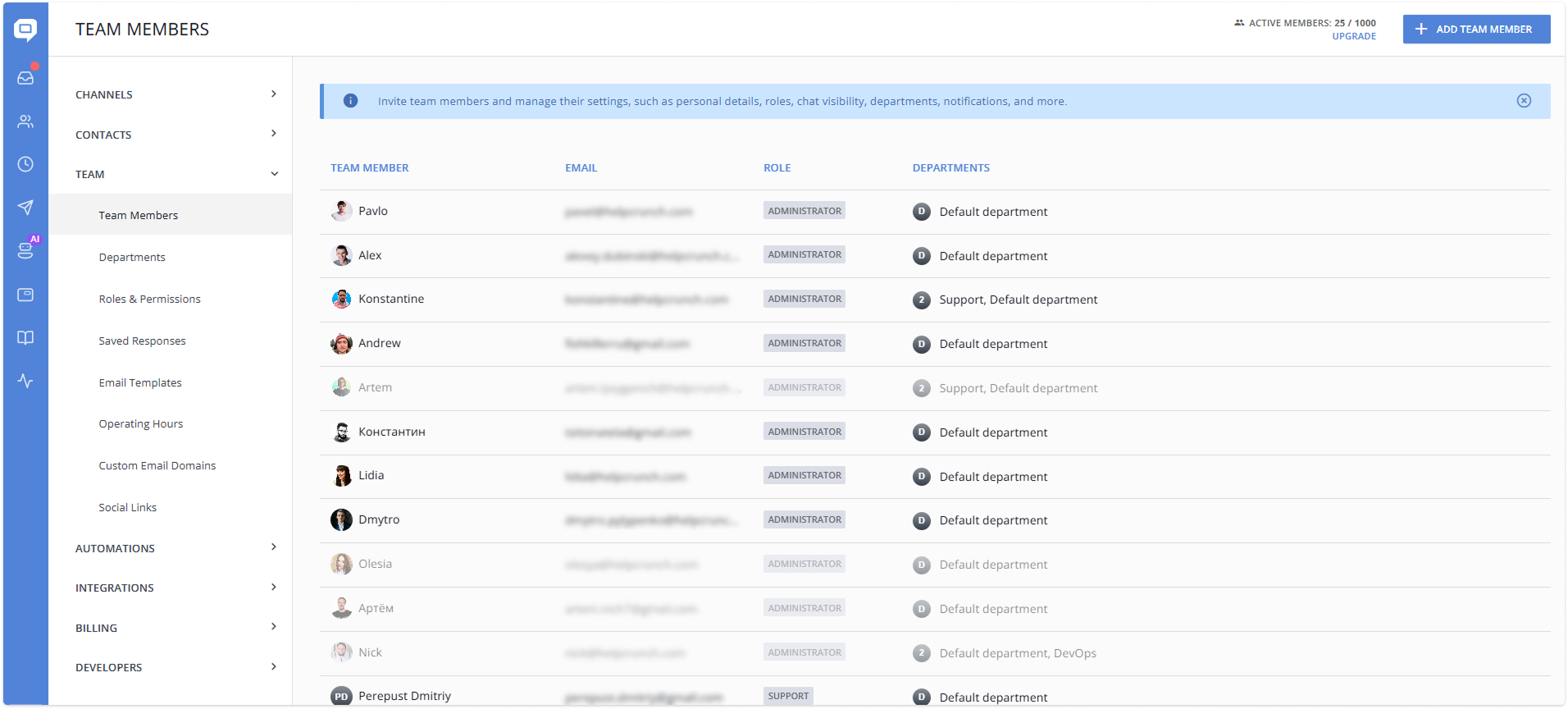
We’ve improved the Team Members settings page. Instead of the previous card view, you’ll now see a well-organized table with filters, making it much easier to navigate for larger teams. The table displays which departments are assigned to each team member.
And to stay consistent, we’ve made a similar update to the Departments settings page. Instead of card view, Departments now use a clean, structured table with filters, making large teams much easier to manage. We’ve also slightly refined the internal UI:
- Improved Chat Assignment visibility. Chat Assignment settings have been moved to the top of the page, above the agents’ table.
- Clearer Chat Assignment behavior. We’ve updated the Chat Assignment tooltip to clearly explain how it works: the first round-robin assignment goes to an online team member.
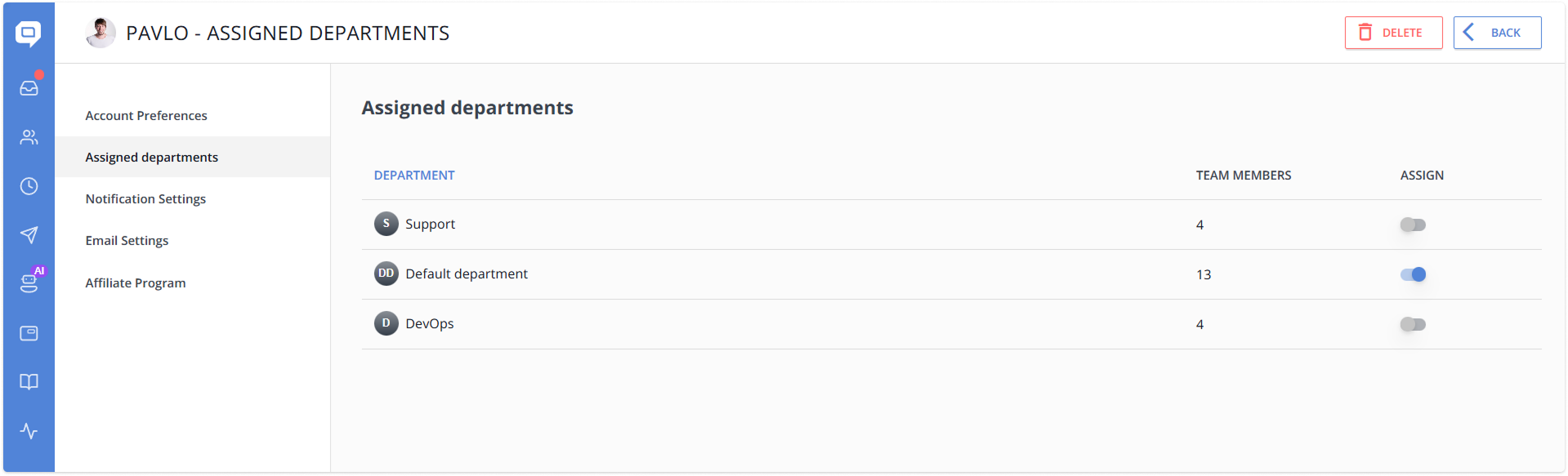
Also, we’ve added a new Assigned departments section to the team member profile (also accessible from My Account), allowing you to quickly navigate to individual profiles and assign departments.
🔎 Search field in all agent-selection dropdowns
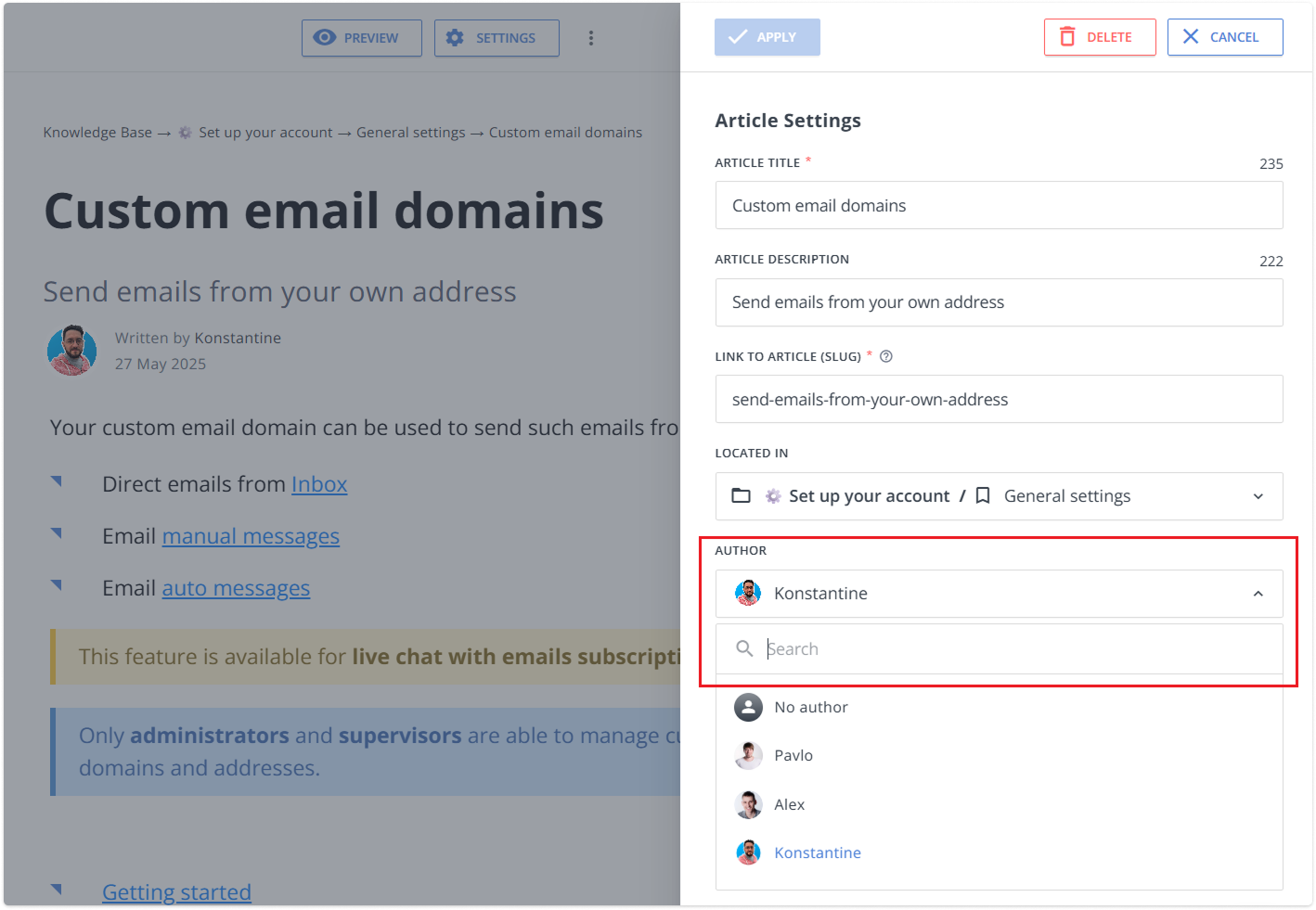
We’ve added the search to every standard agent-selection dropdown across the product, including Reports, Knowledge Base Author, sender selection in Auto and Manual Messages, etc.
Previously, large teams struggled to find the right employees among huge lists of agents. Now it has changed. We also added infinite scroll to these dropdowns, ensuring they load fast and stay easy to navigate – even in big organizations.
🎨 Widget customization
🆔 Show Chat ID. We’ve expanded the widget customization panel with a new “Chat List” section. Just go to Settings → Channels → Website Widgets → (choose the widget) → Customization → Chat list. Inside it, you’ll find the first added setting – “Show Chat ID”.
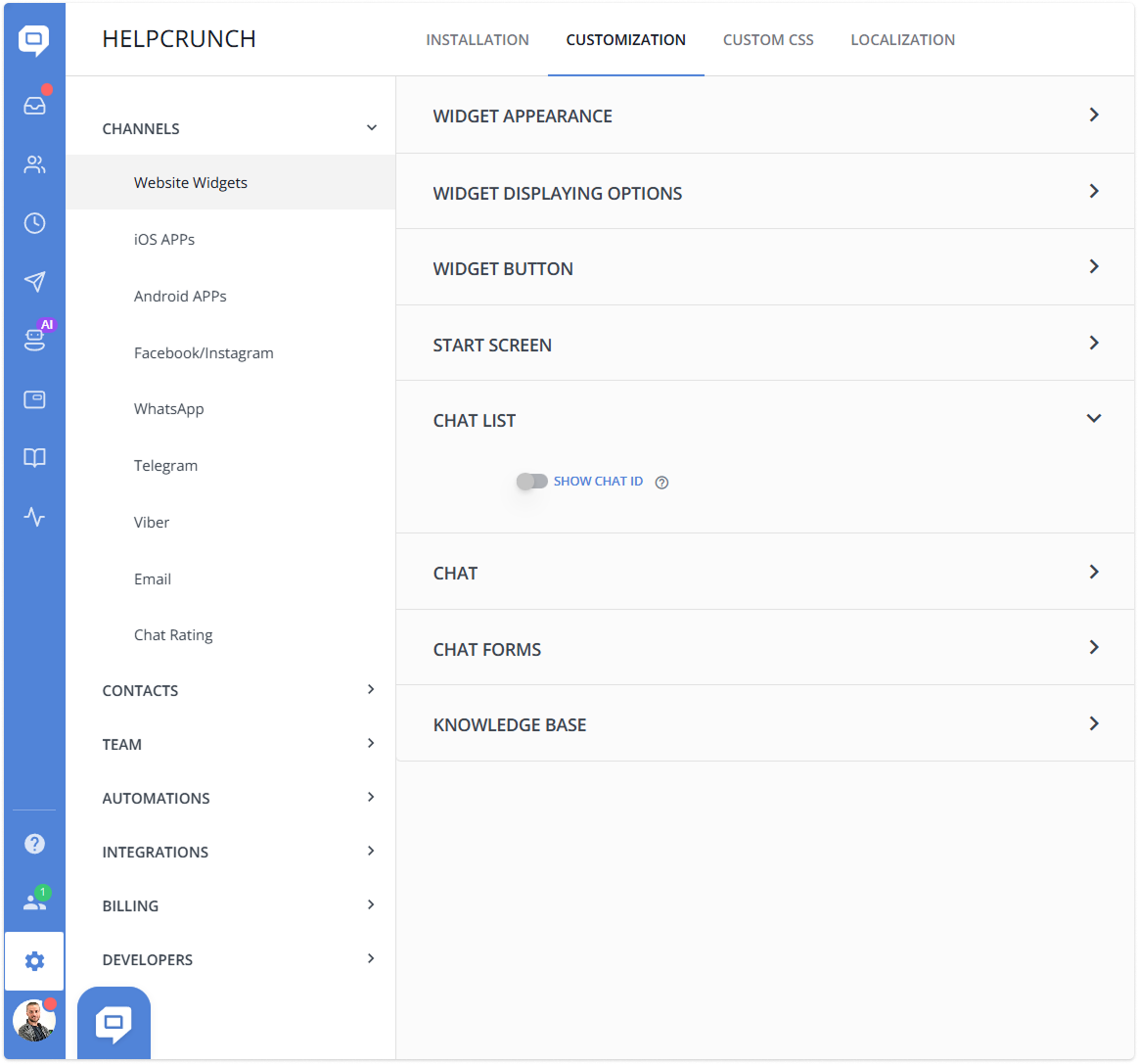
When enabled, Show Chat ID displays the chat’s ID directly in the chat list and on the widget’s start screen. Also, now you can use the Chat ID to search for a specific chat in the Inbox, so it can serve you as a ticket number.
📂 Open files in a new tab. This new setting has been added under Customization → Chat. It gives you more control over how files behave in the widget, preventing them from overriding the current page and improving the overall user experience.
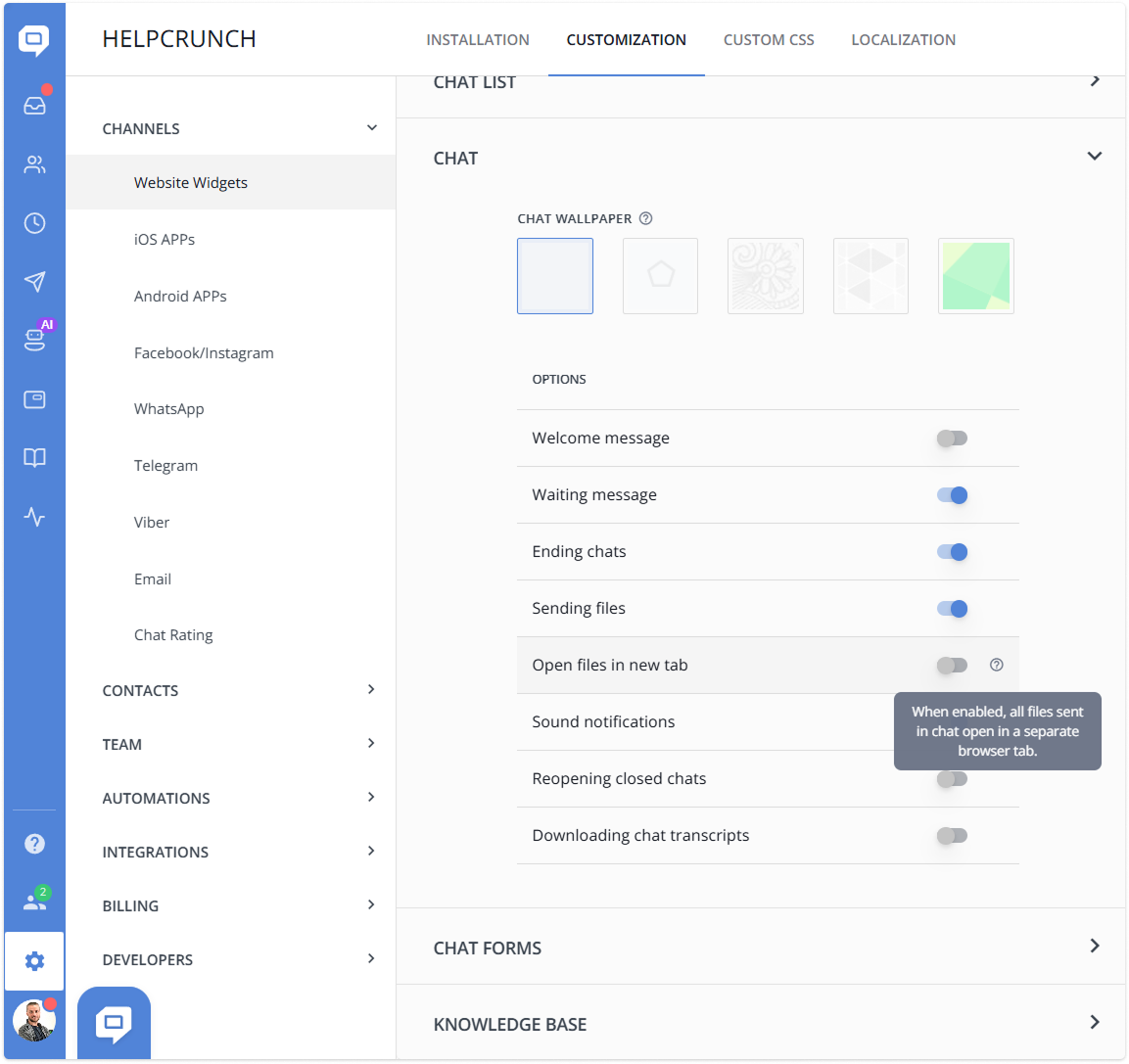
It’s OFF by default for all organizations. When ON: any file a user opens from the chat widget will automatically open in a new browser tab.
We made these improvements to make your experience with HelpCrunch even more enjoyable. So don’t hesitate and try them out for yourself in your HelpCrunch account!
Read Also
💌 Meet new assignment rules based on email fields (to/from/subject)
Time to bring order to your email workflow. Now, you can create assignment rules to redirect or tag messages based on the recipient, sender, or subject.
📖 Accordions, snippet callouts, and auto-logout for Knowledge base
Two new formatting tools in the Knowledge base editor, plus auto-logout for password-protected knowledge bases, smoother widget access, and minor fixes for iOS SDK.
📱 Mobile cleanup: New chat search in apps & SDK stability
Our mobile stack just got a serious cleanup. Enjoy a brand-new chat search in the HelpCrunch Inbox apps, improved message reliability, and a load of SDK stability fixes.
